
Creating highlights and adding notes on desktop and laptop
Before you begin
To start highlighting and taking notes, make sure the following requirements are met:
-
You are viewing a book on openstax.org using a desktop or laptop computer.
-
You are logged in with an OpenStax student account. If needed, you can view help articles on how to create a student account or how to create an instructor account
How to Highlight Text
On any book page on openstax.org, select text by clicking and dragging the mouse over the text you want to highlight. When selecting text, a pop-up will appear on the right. If you do not see the pop-up, resize your web browser to a wider width.
In the pop-up, click any color circle to highlight the selected text in that specific color.
How to Add Highlights and Notes
In the pop-up menu, click any color circle to highlight the selected text in that color.
To add a note, type your text into the field labeled “Add a note.” When you are finished writing your note, click Save.
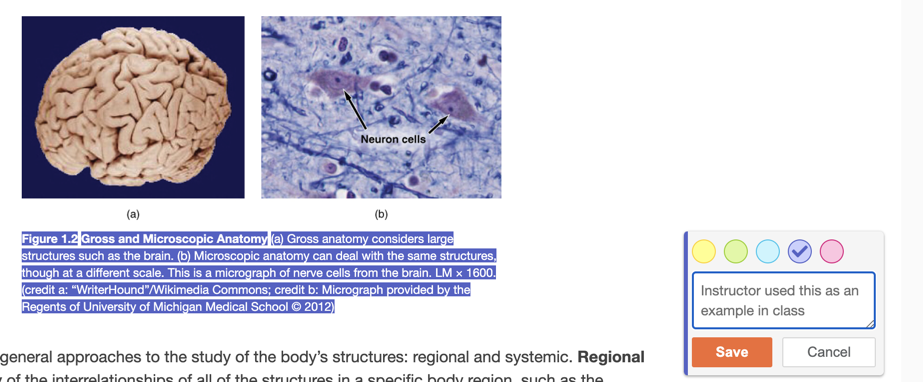
Viewing Your Highlights and Notes
Your highlights will remain visible on the page as you continue reading the book.
Highlights that include notes are marked with a small triangle at the beginning of the highlighted text.
To view a note, click anywhere on the corresponding highlight.